Showing posts with label troubleshooting. Show all posts

Saturday, 6 June 2026

Here We Go Again...

 Troubleshooting, part XWZ (...sorry, I lost count...)


(Re-using an AI-created image from 2024.)

I'm back in communication with my printer/scanner. 

Since my last round of trying to fix it, I've been suspecting that the problem must have something to do with an old unfinished printing job mysteriously stuck in queue, and refusing all attempts to just remove it the usual way (via the printer app).


Today, I first tried uninstalling and re-installing the printer; but that didn't fix it either. So... then I let AI guide me into mysterious chambers I wouldn't have a clue where to look for on my own; and eventually, having emptied one such folder of four files that I had no idea what any of them was - "abracadabra", the printer was immediately willing to both print a test document, and to scan a postcard... Phew! 

Unfortunately, having finished that job, I discovered that in the process, I had instead managed to lose contact with my File Explorer. It had decided to follow the example of my Firefox browser recently, and shrink to a size so small that it's useless (as I can't see what to click on). I suspect it did that in revenge, to punish me from consorting with AI and getting encouraged to fiddle with files and settings a normal non-tech user isn't supposed to dare muck about with... 

While the Firefox window problem could be fixed by uninstalling and reinstalling that browser, I'm not sure that procedure can be applied to File Explorer. (?) However, my new chum AI assures me that there are alternatives to File Explorer to be found. I think I'll have to read up a bit more on that before I try it, though.

Meanwhile, I think I have at least figured out how I can reach my documents and photos in other ways. So for the moment, I'll take the Scarlet O'Hara (Gone With the Wind) approach to further troubleshooting: "I can't think about that right now. If I do, I'll go crazy. I'll think about that tomorrow." 


Monday, 1 June 2026

Entering June


For the month of June in my 2026 photo calendar, I chose this garden gate. It's from my visit last summer (in August) to the childhood home of the Swedish author Astrid Lindgren (at Näs, Vimmberby, in the province of Småland). If you'd like to (re)visit that post and look at more photos from there, you can do so here

. . .

A lot of my "computer time" is currently spent trouble shooting again. This time it's my printer that's being uncooperative (since a week or two). It still works as copier (showing that it's not "dead") but refuses to print documents from the computer - or scan images. I've tried the "automatic" trouble shooting routines without success, so I'll probably have to get into the more time consuming process of uninstalling and reinstalling etc... Or perhaps even wait for a new app which the old app says is going to be released soon... Just hoping no urgent printing jobs will turn up in the meantime!

Saturday, 9 May 2026

Troubleshooting Continued...


Earlier this week I blogged about my sudden problems with the Firefox browser - which has been my No 1 browser used with this blog for many years, until a few days ago it suddenly refused to turn up any bigger than approximately the size of a stamp on my computer (laptop) screen.

As other browsers were working as they should, I've not been totally shut out from blogging - but I don't like unsolved mysteries, so it's still been "bugging" me.

Today I had a bit more time on my hands, so had another go at trying to "fix" the Firefox problem, by uninstalling and re-installing that app. Had to seek instructions on how to do that, but it worked. And after re-installing I did get the program up to full size on my screen again, managed to log in, and my basic settings and bookmarks etc seemed to have been saved. 

I also managed to log into my blog ok. Or so it seemed - until I ran into a new problem that I can't recall ever having encountered before. Clicking the "Sign in" on the main page of my blog would transfer me straight to the "design" page instead. What it would not do was sign me in to the comment section on the main page... So while I could create new posts, I could not reply to readers' comments! *groan* 

So more troubleshooting was required. Probably another hour or so of futile searches, but finally I came across a tip about making sure to remove any "additional" safety settings to do with blocking tracking and cookies etc. And yes! Somewhere in the setting up process I must have allowed some such extras; because after removing a couple of "suspects" of that kind, I suddenly did get back to being logged in properly, including being able to add comments.

I'm writing down this primarily as a reminder for myself, but perhaps this kind of thing may be behind commenting problems occurring for other people on other blogs/browsers as well? So if you feel yourself inexplicably "locked out" from somewhere - the "security" settings on your browser may be one place to look into... 

Now I'm just hoping that when I finally click "Publish", this post (written from Firefox) will not only appear on my blog - but also allow comments, both from others and from myself...

PS. Photo from a walk in the cemetery today. Do you get why I chose it for this post?


Tuesday, 5 May 2026

Troubleshooting


I can't recall just now what it was that I really intended to blog about today. When I turned on the computer, I got caught up spending hours on "troubleshooting" instead, as the browser that I normally use with this blog suddenly refused to show up any larger than that very small square on the bottom of the screen in the photo above. No idea why. It's never happened before, and none of the tips I googled so far works - either because I can't find (see) the suggested thing to click on, or because clicking on it doesn't help. 

I asked AI for advice of course, but it just "pretended" to be helpful:

Key Steps in the Troubleshooting Process:

Define the Problem: Clearly identify the symptoms—what is the actual vs. expected state.

Gather Information: Speak with users, review data trends, and check error messages.

Identify the Root Cause: Isolate the issue by narrowing down possibilities (e.g., checking hardware connections or software settings).

Develop a Hypothesis: Guess the most probable cause based on information gathered.

Test and Fix: Implement a solution, but do so cautiously to avoid making things worse. 

I'm thinking that uninstalling and re-installing from scratch might perhaps fix it - but I'm too tired to try to "cautiously implement" that just now.

Luckily my alternative browser used with this blog did work (showing up full size) - but here I found myself logged out from things, so that took a while to sort out as well.  

Tomorrow is another day; but then I have an appointment with my dentist for a different kind of  troubleshooting. Back on Friday I somehow managed to lose a very tiny corner of an important tooth, of which the major part is already "fake". I'm not in pain, but I have no idea whether the dentist will find it a simple quick fix or  if it will turn out a Really Big dental job. All I know is that it won't self-heal! - so better seek help ASAP...

Thursday, 28 March 2024

Printer Trouble


If anyone is wondering what's been keeping my busy over the past couple of  days since Monday, the answer is that my computer suddenly stopped communicating with my (HP) printer/scanner. All my "computer time", two days in a row, had to be spent on trying to solve this. It was utterly annoying, since there seemed to be nothing at all wrong with the printer itself. But my laptop kept insisting that it was unavailable, not connected, or "idle". Of course I tried the standard "turn off and turn on again" tricks on both machines, but to no avail. Then I tried exchanging the printer cable (I found a spare one in one of my drawers) but that made no difference either. I also tried uninstalling and reinstalling the printer app, but that did not help. Had to give up on Tuesday evening; and did not have time to try again until Wednesday afternoon. 

Now I got messages saying that the printer was not connecting with my WiFi. But it never has been connected to WiFi... I've been using in on cable, and that had so far worked fine... But okay, if using WiFi was what was needed now... So I tried loooking for instructions how to connect the printer to WiFi - but I could not find any. I was just repeatedly told to do it - but without any suggestion how...

Finally, somehow, somewhere, I must have done something right, because a message turned up to say there was no printer "driver", and also suggested where I might find and download that. Didn't manage that on my first try either, but eventually I did, and then suddenly, somewhere in the installation process, I was also presented with the option to connect by cable instead of WiFi. And then, some time late last evening, all was finally back to normal, in both directions, with both printing and scanning. As if nothing had ever happened in the first place to break that connection...


Now I only wish I could retrace my steps properly and write it all down (in case it happens again) - but the truth is I still don't know neither what went wrong in the first place, nor what I finally did right to get back on track. (I do have my suspicions that a background Windows update may have been what caused the breakddown. But I can't prove it...)

Today I've been busy with other things and now it's already bed-time again. Ooops!


Sunday, 18 September 2016

Some Anniversary

Bildresultat för some anniversary
(The very first image that came up when I typed “some anniversary” in the Google image search box”"!!!)

Too much of my time lately seems to be taken up by technology trouble. If not one thing, it’s another.

Have you been hit by the Windows 10 Anniversary Update yet? Until this morning, I had not even heard about it… However, when I started my computer today (intending to reply to a few blog comments before lunch) this happened:

Okay… I guess I’ll have my lunch while that goes on then…?

1 hour later: 32% done.

2 hours: Just a wheel of dots spinning on black screen...
(…on and on and on, and nothing else happening…)

3 hours: Still spinning. No idea what's going on.
Phoned my brother for moral support before taking the bold decision to turn the computer off and on again.
Looked promising at first; but soon back to what I later learned also goes by the ominous name of SWOD (spinning wheel of death)… I took my chances though and just left it spinning while I went out for a walk.

4½ hours (or so): Back home. Cup of tea. Wheel still spinning, no change. New decision: Turn off. Let computer rest and cool off for a while. Do the same myself… Read up on things in manual.

5½ hours: Deep breath, pressing the start button again. Missed hitting F8 at the right moment (as the manual advised) – darn… Okay, let’s see what happens… oh? Smart computer… It understood my intention anyway…


Another half hour or so, and bingo:


So it seems I’m now back to the version of Windows 10 that I had before the attempt at “anniversary” update. (If I’ve lost anything else in the process I’ve not discovered that yet.)

The question remains: What happens next time I have to turn the computer off  and on again? – as no doubt at some point I shall have to.

For tonight I’m contemplating the alternative to perhaps just try and put it to “sleep” rather than turn it off properly, though… We’ll see how that goes!

Bildresultat för zzz

Friday, 6 May 2016

Resurrection(s)

2016-05 resurrection

The past week has been totally crazy on the technology front for me: One problem after another.

First it was my mobile phone. It went through a major update last Saturday. The day after it seemed to have come through it unharmed. Although, on second thought, it did seem to get hot rather quickly. But its condition must have got worse over night (while I slept, and assumed the phone was doing the same…). On Monday morning, when I tried to wake it up,  it complained about not being able to find the SIM-card; and it kept getting overheated and restarting itself spontaneously every few minutes. To force it to turn off completely I had to use a special hidden button to be pressed in by the end of a paperclip or something. (And to find that option, I first had to find and read the manual…)

So the next few days were spent trying to find info on what might be wrong and how one might try to fix it or if I would have to send it in somewhere, or… According to my mobile operator the SIM card was still valid, with both time and money left. I could have ordered a new card, but I wasn’t feeling at all sure that it was the card that was the problem. I found a computer app that might be used to repair the phone software, but before using that, I had to make sure I really knew all my relevant account settings; or I might end up in even bigger trouble than I already was.

This, in turn, made me realize what a mess of accounts and user names and passwords and email addresses and mobile phone numbers that have come to rule our (internet) lives… (Including the fact that some accounts want to use text messages for verification codes. Which may seem practical as long as the phone is working, and the number correct. But if not…) So made a promise to myself that if I got through the present troubles, then I’m going to do a major review of all my accounts try to get some better consistency into it all…

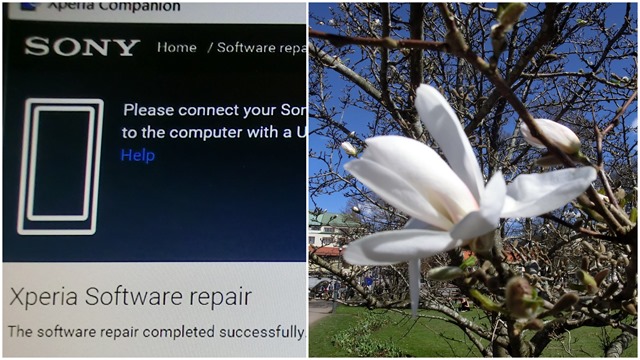
It wasn’t until Thursday morning that I felt ready and alert enough to finally let Xperia Companion have a go at repairing the phone. The operation went well, though. The patient was resurrected and all vital functions restored. Connection to the SIM-card re-established, and no more hot flushes and fainting. Most apps returned automatically as well. (It does involve a bit of manual “rehab” to restore various settings though.)

So I was happy for a while (a few hours!), and then felt encouraged by my success to also look into another problem. It was my ‘smart’ TV that had somehow disconnected itself from the internet, and now claimed it could not find it again. (Watching ordinary TV was ok though, so I put that problem aside while working on solving the more urgent phone issue.)

While I was looking for solutions to this, the TV told me to press a button on my router. So I did. Unfortunately I probably held the button down a bit longer than I was supposed to; with the result that the router was reset to default, and instead of connecting the TV, erased the whole home network and left all my other wifi devices without internet access as well… Except the PC (laptop), because I have that on cable in the study. (Which proved there was nothing wrong with the internet cable as such.)

I decided I needed  a night’s sleep before I tried resetting the router (as I also had to read up on how to – and make sure I knew the right settings, and so on and so forth)…

Right ho. This morning after breakfast I tackled the task, managed to find the required websites and and manuals and my notes from last time… moved the laptop to the living room, connected it to the router, managed to log in, supply the relevant data and so on, and recreated the network. All the devices happily reconnected themselves - except the TV…

Then, from somewhere at the back of my mind, I recalled that there is a restart function on the TV itself.  It’s been a while since I had to use it, so I hadn’t thought of it… It involves (surprise! – or rather, no surprise) holding down a button longer than usual… I did, and voilà. Another miracle. (TV reconnected immediately.)

Lesson learned: You really have to be very careful with how to press buttons. One second more or less may seem unimportant, but for a wifi appliance it may be a question of life or ‘death’…

Meanwhile, outdoors, nature seems to have successfully updated itself to Full Spring... Sunny, warm, and the birch trees exploding with pollen... (Achoo!) (Yes, I’m allergic.)

CIMG8248

CIMG8249

CIMG8251

CIMG8252

CIMG8253

CIMG8254

CIMG8255

CIMG8257

CIMG8240

CIMG8230

CIMG8229

Tuesday, 15 October 2013

Oops! The Intertubes Are Broken

If you ever wondered what makes the internet work, it seems to be the “intertubes” that do it. Except when they they are broken…

Anyway, this is as far as the Zynga Words With Friends support takes me at the moment, when I try to investigate why I can’t access their game on my phone (since yesterday afternoon).

Going on to ask Google what on earth “intertubes” are, it looks surprised and asks me back: Did you mean: inner tubes?”

However, www.justanswer.com gave me this explanation (answer to a similar question asked a couple of months ago by someone else):

Actually the "Intertubes are broken" message is kind of an inside Joke with Zynga's programmers. The joke is that they are having an issue on their end and not on your computer.  --- you should not have to do anything, Usually it can take up to 24 hrs for Zynga to fix stuff on their end.

So I guess I’ll just wait another day or so before I waste any more time on fruitless troubleshooting at my end.

(In the meantime, I’m still able to access the game on the computer via Facebook. Just as info to friends I’m currently playing with!)

Related Posts Plugin for WordPress, Blogger...